Math, diagrams, and sources in one native note
Keep the calculation, its explanation, and the source together.

A calculation is easier to revisit when its assumptions are beside it. A diagram is more useful with the paragraph that explains its arrows. A saved link should still be recognizable when you open the note next week.
We built Phrase to keep these pieces together. Its native iPhone block editor supports math, Mermaid diagrams, images, and link previews alongside headings, paragraphs, quotes, and checklists.
Put the calculation beside the explanation
In this sample note, a small energy calculation sits above a Mermaid diagram connecting a panel, a battery, and a light. The formula describes the quantity; the diagram shows how the parts relate.
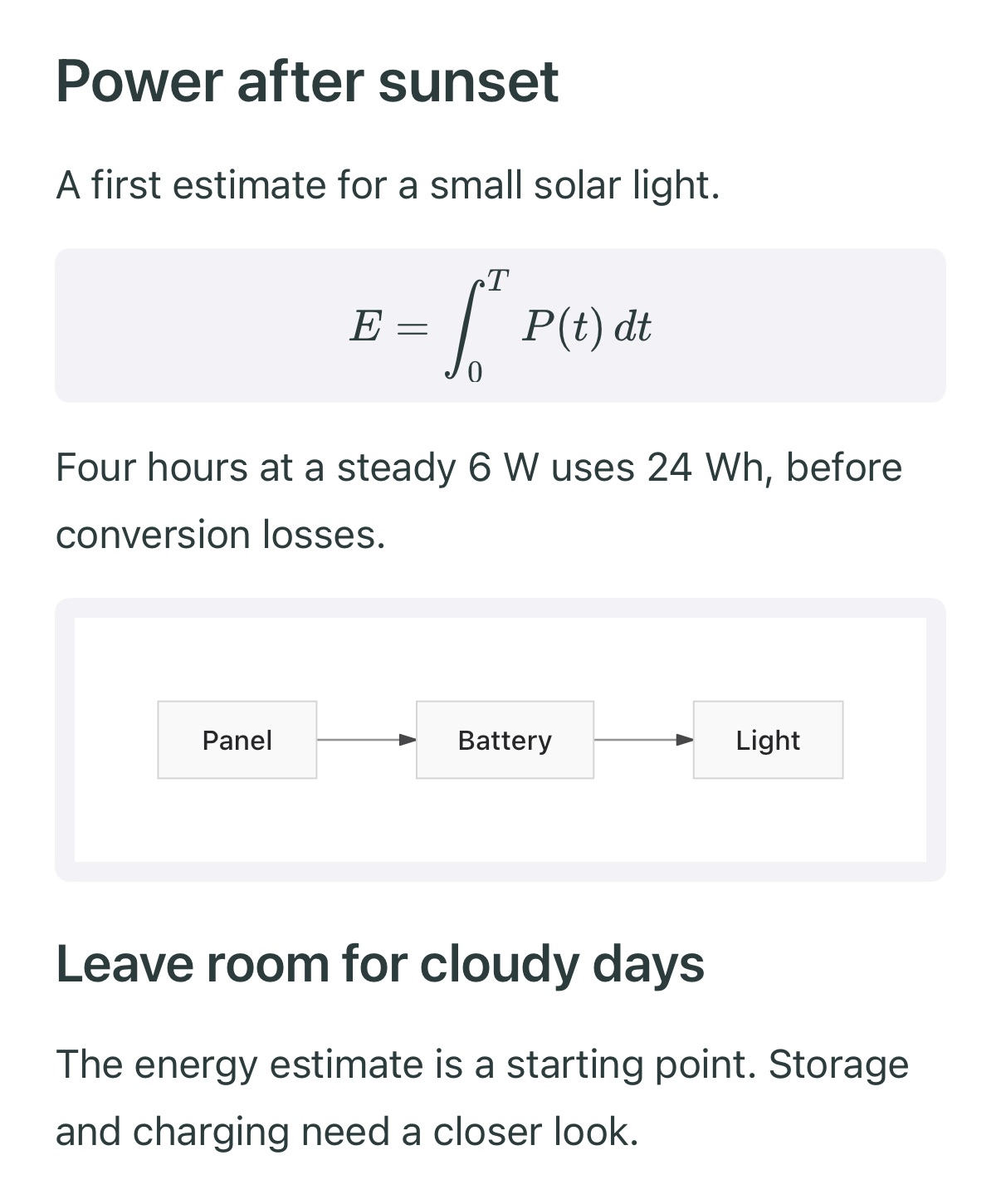
Math and a Mermaid diagram rendered in our native editor. Captured in the iOS Simulator.
We give formulas and diagrams their own blocks. That lets the notation take the space it needs while the surrounding text explains what it means. The surrounding explanation remains editable alongside them.
The diagram connects the panel, battery, and light. The formula describes energy over time. Keeping both beside the assumptions makes this a calculation we can inspect and revise.
Keep an image in the flow of the note
An image can establish a place, preserve a reference, or make a plan easier to remember. We place it in the document with the text around it, where it can contribute to the same thought.
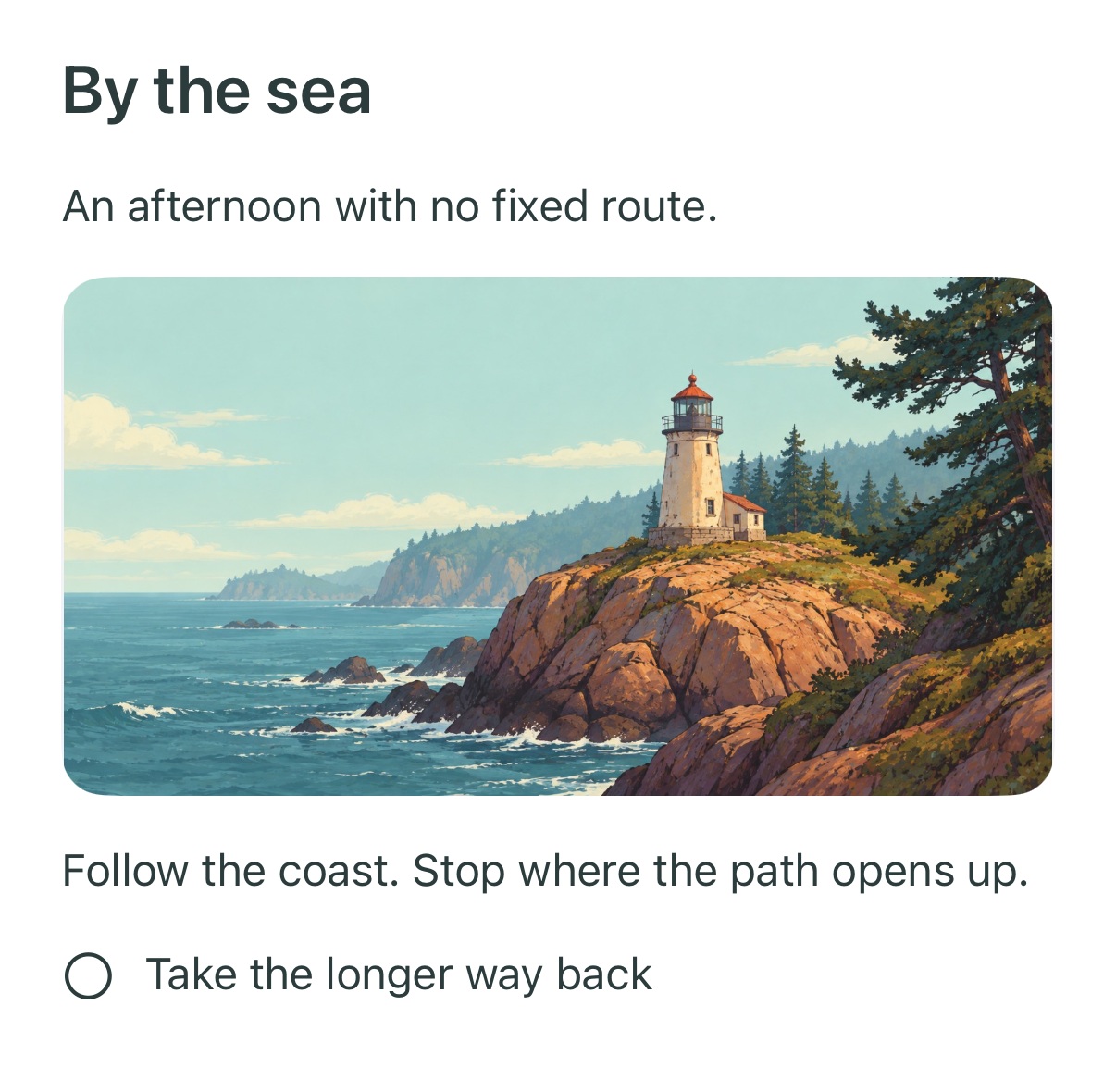
An image between the introduction and a checklist, in our native iPhone editor.
The image block keeps its proportions as the available width changes. The text and checklist remain ordinary editable blocks, so the visual reference can stay close to the plan it belongs to.
Save a source you will recognize
We resolve supported web links into preview cards, including Twitter links. A title and image help distinguish a saved source from a list of similar-looking URLs.
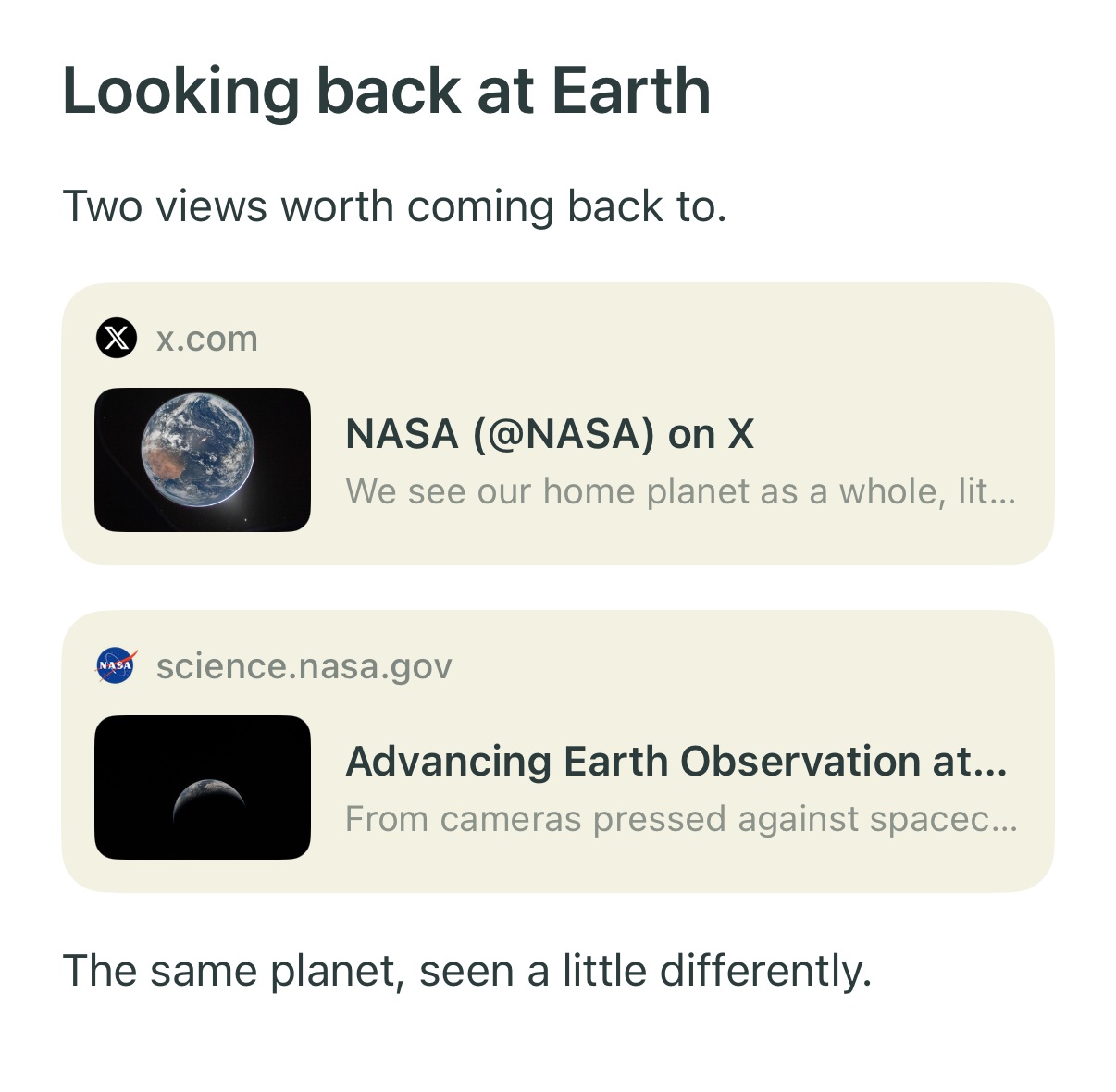
Fetched previews for NASA's Twitter post and its Earth observation article. Preview imagery: NASA.
These cards use the information the source makes available. Their appearance depends on that metadata. The original link stays attached to the reference, so you can return to the source when you need the full context.
We chose related sources for this example because a note usually has a subject. A post and a longer article can support the same line of research, with your own observations beside them. Our source-saving walkthrough shows how to build that kind of note.
Keep the page editable
Rich content is useful when you can still revise the note around it. We render these blocks with native views in the same editor as the text.
We also support two scales of selection. A continuous text range can cross text blocks when you are rewriting a passage. Whole-block selection lets you work with complete items. Our swipe, two-finger selection, and drag gestures make that distinction visible.
For a technical note, this means the formula, the explanation, the diagram, and the source can remain in one document as the idea develops. We explain the rendering and block sizing in native math and Mermaid diagrams in a Swift editor.